
.Karl's Guide On Successfully Installing mIRC and connecting to the Sythe IRC Network
If you need Any Help in joining the IRC, or anything whatsoever, Contact me via PM or MSN:[email protected]
This guide will show you from beginning to end the process of Installing mIRC (A Well Known IRC Client which is fundamentally very good), and the process of logging in
to the SytheIRC Network.
NOTE: mIRC has a 30-day free trial, then after said date you will be prompted every time you run the program to purchase It, It is up to yourself how you respond, this includes
Purchasing It, Just ignoring the prompts for as long as possible (Which you can), or anything else.
Step 1: Getting mIRC.
Firstly, your going to have to download mIRC, I recommend Two sources, A) The Official mIRC Website At: www.mirc.com, or B) www.download.com, search for mIRC
NOTE: The link at the official mIRC website re-directs to www.download.com anyway
Now Once Finnished Downloading, Open the program (At the time of this guide was written, the latest mIRC was at Version 7.1, You will need Administrator Access to Install
The Program, Go through the Installation Setup and make your own preferences, make sure the The Installation type is Full if installing for the first time. Once completed
Tick the option "Run mIRC" and then click Finish
On opening, you will be prompted with an option asking if you want to register now or later, For now, Click "Continue". you will then be left with this:
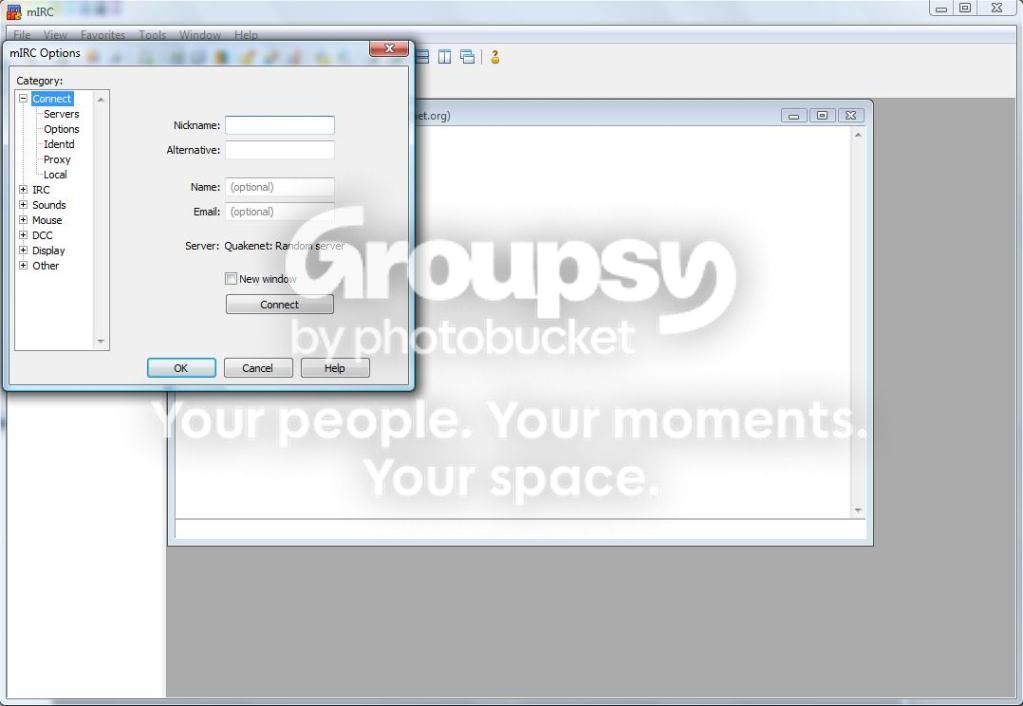
Fill in the appropriate details, the Nickname Field will be the nickname that you'll be displayed with on the IRC Network you join, However, For example: I use my own name
On the IRC networks I use, however, considering my name is an actual name, it could be taken, You will also need to register your nickname on the individual IRC Networks,
I'll describe this later On.
Step 2: Connecting to an IRC Network.
For this, I will use SwiftIRC Network, this is the network mostly used for Runescape, as it is the IRC featured in Swiftkit.
On The mIRC Options window, click On Servers in the Connect Tab, this will display a list of Default IRC servers which can be connected to. Mine is blank Because I normally
Choose to remove them all and so I can display the information for this Guide much easier.

To add a network, click "Add", A new window will appear, where you can enter the information, For example:

Description: The name of the IRC Network, helpful so you know what network your connected to.
IRC Server: The full servername, I have entered the European network connection for SwiftIRC, this needs to be correct if you want to be able to connect properly
Port: The default is 6667, so just leave it at this.
Group: The ability to group the IRC server with others, not necessary.
Password: Not needed for the IRC networks im showing, however, add this if the IRC network you want to join is protected.
So click Add, it will now be displayed in the list. Now highlight the network and click "Select", this will re-direct you to the original window, now click "Connect"
AS SOON AS YOU CONNECT, alot of text will suddenly appear, Don't worry, this is normal.
The last few lines are normally the most important, For example;

This tells me that the Nickname "Karl" is registered on this network, and that if i am the owner of "Karl" then im prompted to login, otherwise the IRC will automatically
Change my Nickname to something else, Which leads me on to my next part..
Step 3: Registering on a network and connecting to a channel.
Well firstly, if you nickname is not taken on the IRC network, your inluck!
you will need to input this command into the text box on the IRC window, The syntax can be different, on the Swift IRC network, it is;
Code:
/msg Nickserv Register <desired-password> <desired-password-again> <email> <email-again>So mine will be;

Not all IRC networks use Email verification, but you do need an email to register (so you can get your nick back if you lose your pass)
So once verfied (basically, go to your email, and input the code displayed) you can now login with your nickname!
You have a set-time to login when connecting before it'll change your nickname to an unknown nick. Input this command;
Code:
/msg Nickserv Identify <password>so once inputted, you will get this.

So.. now your registered, you need to join a channel to start talking to people. to find out the most active channels input the command:
Code:
/listThis will display the IRC Channels on the network in order of amount of users, This will only show unhidden IRC Channels, this is the Swift IRC's /list ;

Looks pretty complicated right? Well basically the first column is the name of the channel, Channels start with the prefix "#" so for example, if i wanted to join
"#Runescape", I would have to type.
Code:
/Join #Runescape
This is the basic mIRC channel screen
Users Of the Channel can be defined pretty easily..
Nicknames with know kind of symbol or prefix before their name are NORMAL IRC Users, they have No access in the channel
"+" infront of their names establish them as "Voiced" Users, In some channels, when the mode "+M" is activated, normally "+" is needed to be able to talk,
"&" means Half-Operater, These are normally able to kick and ban users. they can also voice users.
"@" Is Operator of the channel, They have several more powers
"&" is Channel Admin, They have most Powers
"~" is channel Master, owner of channel, ALL POWERS
So now your connected to mIRC, WOOT!
How to connect to Sythe IRC.
NEEDED:
A unbanned Sythe account
Run mIRC like usual, add the server on the mIRC options page;

Now before you connect, make sure you are logged in to sythe.org,
Click Connect, this will now be shown.

You must now go to sythe.org and click on the following;

Now refresh, and click again. your Token will be displayed, COPY all of it.
now back on the Sythe IRC server window - type in
Code:
/login -pastetokenhere-Then Enter, You will then be logged into the Sythe IRC network, your nick name will be changed to your Sythe username.

VOILA, SytheIRC network. in the channel "#IRCSythe"
TO JOIN THE CHANNEL AFTER LOGGING IN, DO:
Code:
/join #IRCSythe
My failed attempt at getting Sythe to Say Hi ;P
Thank you For reading this Guide, I'll see you in the IRC!