



 Managing Groups (PhPBB 3)
In this tutorial I will show you how to use some of the basic features such as adding a group and setting some options for groups.
INDEX
Section 1. Adding a group.
Section 2. Hide or display the group in the legend.
Section 3. Allowing/Disallowing private messages to group.
Section 4. Group colors.
Section 5. Group Ranks.
Section 6. Group Avatars.
Section 7. Adding members to groups
Section 8. Removing members from a group
Section 1. Adding a group.
To add an additional group you first need to log in and go to your ACP (Admin Control Panel) and click the general tab which can be found on top near the left side of the page.
Once there click on manage groups which can be found on the left side in the side bar.
Once you are there you will be at the manage groups page. The manage groups page allows you to add groups and to view the other current groups you have. Find this area on the page..
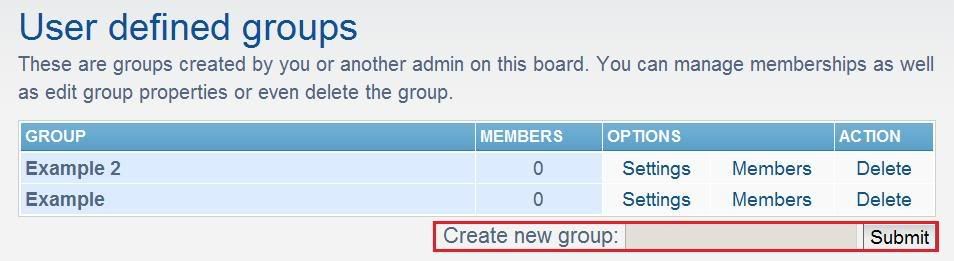
..and in that box you can put the name of the new group that you want, once this is done you can hit submit and proceed to the next step.
:arrow: Now you should be on the group settings page, here you can add the title of the group and add a brief description about the group. You will see some other settings here but I will explain those in the next sections.
:arrow: under the description box you will see the group type options, these are simply options which allow you to hide the group close the group and make it open so members can request join.
2. Hide or display the group in the legend.

To display the group in the area shown above check the box that I boxed out in blue for you guys..
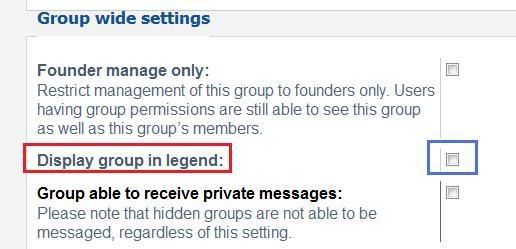
..if you don't want the group in the legend then just leave this box unchecked and it won't show.
3. Allowing/Disallowing private messages to group.
What this feature does is it allows users to select the group and send a message to all the members in it, when they compose a message they will have the option to click on the group and send the message to all the group members.
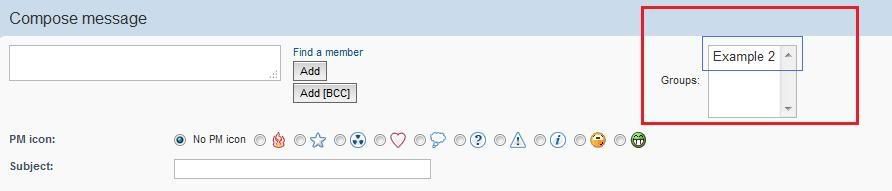
To allow users to send messages to the group find the area in red and check the box that i boxed out with blue.
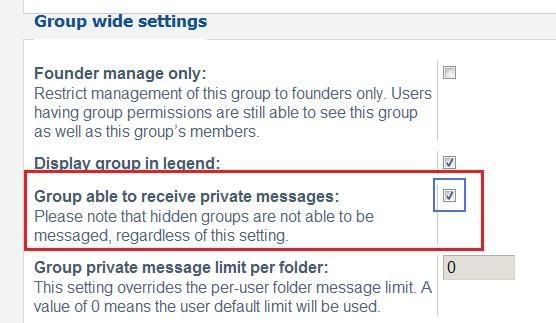
If you don't want users to be able to send private messages to the group just leave the box unchecked or if it already checked un-check it.
Section 4. Group colors.
If you want to change the colors of your groups like this...
..then find the area that I boxed out in red and click on the area that I boxed out in blue to choose the colors.
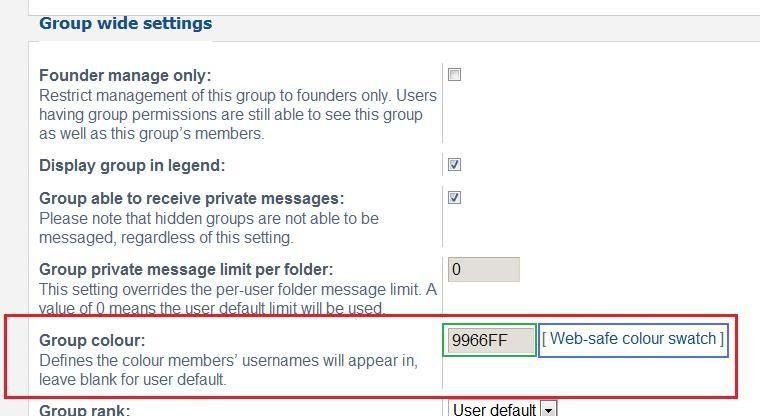
you can also add the HTML code for the color in the area that I boxed out in green.
Section 5. Group Ranks.
If you want all group members to have a certain rank then just find the area I boxed out in red and then go to the area I boxed out in blue and use the drop down menu to choose the rank you want for the group.
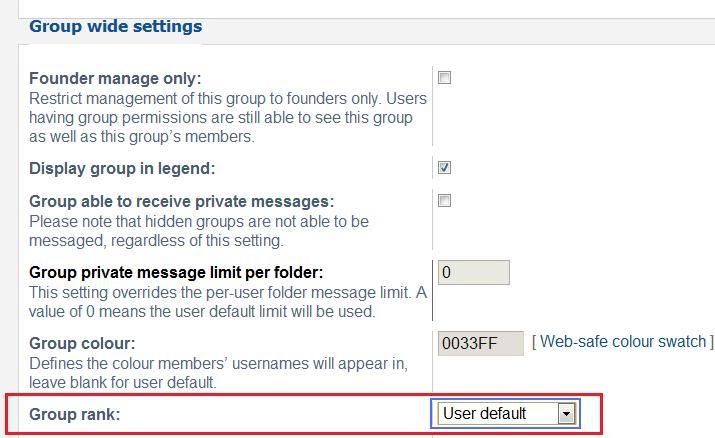
If you need want to know how to make a rank for the group then just read my ranks tutorial.
Section 6. Group Avatars.
Now if you want all the members in your group to have a default avatar then find the area I boxed out in red and use the choose files area that I boxed out in blue to choose a picture from your computer.

You can also choose an image via URL by using the link to the image and putting it in the image from URL or upload from URL areas.
Section 7. Adding members to groups.
To add a member to the group go to the General Tab and click on the manage groups thing which can be found on the left sidebar. Once you are there you will be at the groups settings page, to add members to the group simply find the group you want to add members to and on the right side you will see something that says members, click that.
Once you finished clicking that you will be directed to the add members page. Now to add a member you can use the find a member link which I boxed out in orange or simply just type in their username in the area I boxed out in green...

Now if you want to make the group the default group for him check the yes circle which can be found in the area I boxed out in blue. (This also turns their name to the color that you set for the group) If you want to make a user the leader of the group simply check the yes circle which can be found in the area that I boxed out in the pinkish color.
Section 8. Removing members from a group.
First of all go to the members settings page where you add members and find the area I boxed out in red..
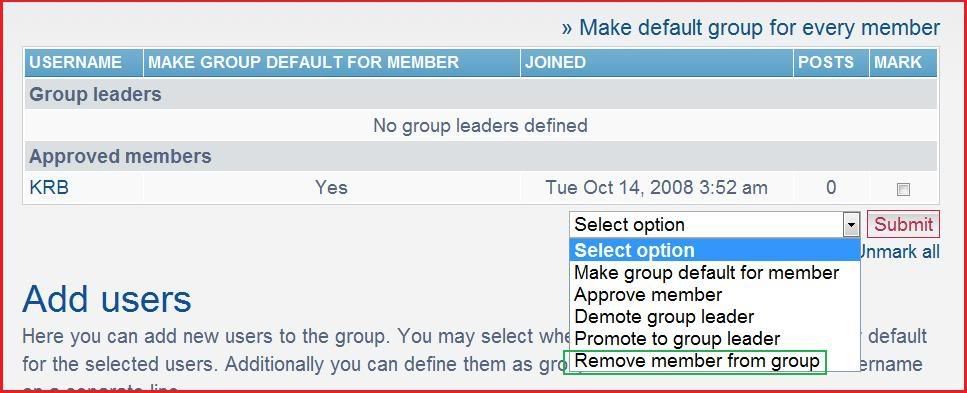
...One you see that click on the drop down menu and choose the remove member from group option which I Boxed out in green, then hit submit.
INDEX
Section 1. Adding a group.
Section 2. Hide or display the group in the legend.
Section 3. Allowing/Disallowing private messages to group.
Section 4. Group colors.
Section 5. Group Ranks.
Section 6. Group Avatars.
Section 7. Adding members to groups
Section 8. Removing members from a group
Section 1. Adding a group.
To add an additional group you first need to log in and go to your ACP (Admin Control Panel) and click the general tab which can be found on top near the left side of the page.
Once there click on manage groups which can be found on the left side in the side bar.
Once you are there you will be at the manage groups page. The manage groups page allows you to add groups and to view the other current groups you have. Find this area on the page..
..and in that box you can put the name of the new group that you want, once this is done you can hit submit and proceed to the next step.
:arrow: Now you should be on the group settings page, here you can add the title of the group and add a brief description about the group. You will see some other settings here but I will explain those in the next sections.
:arrow: under the description box you will see the group type options, these are simply options which allow you to hide the group close the group and make it open so members can request join.
2. Hide or display the group in the legend.
To display the group in the area shown above check the box that I boxed out in blue for you guys..
..if you don't want the group in the legend then just leave this box unchecked and it won't show.
3. Allowing/Disallowing private messages to group.
What this feature does is it allows users to select the group and send a message to all the members in it, when they compose a message they will have the option to click on the group and send the message to all the group members.
To allow users to send messages to the group find the area in red and check the box that i boxed out with blue.
If you don't want users to be able to send private messages to the group just leave the box unchecked or if it already checked un-check it.
Section 4. Group colors.
If you want to change the colors of your groups like this...
..then find the area that I boxed out in red and click on the area that I boxed out in blue to choose the colors.
you can also add the HTML code for the color in the area that I boxed out in green.
Section 5. Group Ranks.
If you want all group members to have a certain rank then just find the area I boxed out in red and then go to the area I boxed out in blue and use the drop down menu to choose the rank you want for the group.
If you need want to know how to make a rank for the group then just read my ranks tutorial.
Section 6. Group Avatars.
Now if you want all the members in your group to have a default avatar then find the area I boxed out in red and use the choose files area that I boxed out in blue to choose a picture from your computer.
You can also choose an image via URL by using the link to the image and putting it in the image from URL or upload from URL areas.
Section 7. Adding members to groups.
To add a member to the group go to the General Tab and click on the manage groups thing which can be found on the left sidebar. Once you are there you will be at the groups settings page, to add members to the group simply find the group you want to add members to and on the right side you will see something that says members, click that.
Once you finished clicking that you will be directed to the add members page. Now to add a member you can use the find a member link which I boxed out in orange or simply just type in their username in the area I boxed out in green...
Now if you want to make the group the default group for him check the yes circle which can be found in the area I boxed out in blue. (This also turns their name to the color that you set for the group) If you want to make a user the leader of the group simply check the yes circle which can be found in the area that I boxed out in the pinkish color.
Section 8. Removing members from a group.
First of all go to the members settings page where you add members and find the area I boxed out in red..
...One you see that click on the drop down menu and choose the remove member from group option which I Boxed out in green, then hit submit.


