Legit Trainer
Grand Master
How to remove/uninstall those unused programs.
Introduction:
Ever needed more room to install that new version of World Of Warcraft, but you couldn't because you never had enough memory left on your computer? Or ever died from lag because your computer was lagging or is just slow. Well, uninstalling programs that you do not use on your computer gives you more memory on your computer & makes your computer a bit faster!
Step 1
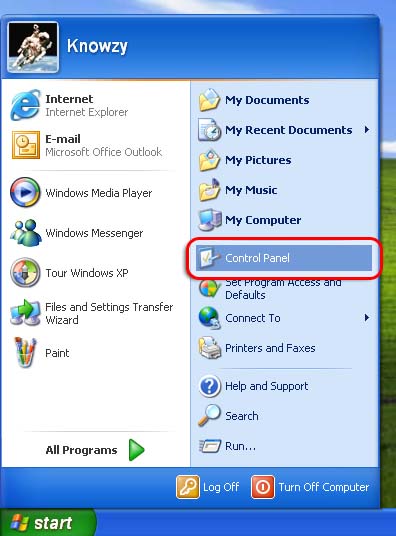
Go to the start menu and find the Control Panel, and click on it.
Step 2
After clicking, on control panel. Click on Add or Remove Programs. After clicking on that menu, a screen should pop up loading a list of programs installed on your computer.

Step 3
After the list of programs have been loaded onto the screen. Select the program you wish to remove/uninstall. Click on the Change/Remove button. Also on the list, it shows when the program was last used and how much memory it takes up. It also shows how often you use the program or how seldom you use it.

Step 4
A wizard should guide you through the rest of the procedure depending on the program you are "changing" (or removing.)
For further information needed, please use this video i found. [X]
I DID NOT USE THIS VIDEO TO WRITE MY GUIDE.
---------------------------------------------------------------------------
Sources:
http://www.knowzy.com/images/windows/Start_Menu-Control_Panel_Selected.jpg
http://www.microsoft.com/library/me...up/hwprograms/click-add-or-remove-program.jpg
http://communicator.pulver.com/docu...ll - Add or Remove Programs Control Panel.jpg
-Legit
Introduction:
Ever needed more room to install that new version of World Of Warcraft, but you couldn't because you never had enough memory left on your computer? Or ever died from lag because your computer was lagging or is just slow. Well, uninstalling programs that you do not use on your computer gives you more memory on your computer & makes your computer a bit faster!
Step 1
Go to the start menu and find the Control Panel, and click on it.
Step 2
After clicking, on control panel. Click on Add or Remove Programs. After clicking on that menu, a screen should pop up loading a list of programs installed on your computer.
Step 3
After the list of programs have been loaded onto the screen. Select the program you wish to remove/uninstall. Click on the Change/Remove button. Also on the list, it shows when the program was last used and how much memory it takes up. It also shows how often you use the program or how seldom you use it.
Step 4
A wizard should guide you through the rest of the procedure depending on the program you are "changing" (or removing.)
For further information needed, please use this video i found. [X]
I DID NOT USE THIS VIDEO TO WRITE MY GUIDE.
---------------------------------------------------------------------------
Sources:
http://www.knowzy.com/images/windows/Start_Menu-Control_Panel_Selected.jpg
http://www.microsoft.com/library/me...up/hwprograms/click-add-or-remove-program.jpg
http://communicator.pulver.com/docu...ll - Add or Remove Programs Control Panel.jpg
-Legit