



Six
Guru
- Joined
- Jan 21, 2007
- Sythe Gold
- 12
- Messages
- 1,482
Daily500's Guide to Installing RAM.
Ok well, you just bought a new RAM card. You want to install it and don't know how? Well this guide is for you!
NOTE:Whenever you touch anything inside you're computer, never create static. This can break things. Sad
Step 1:Turn off, then unplug your computer.
Step 2:Take off the cover. Hopefully you won't need to unscrew anything.If you do..well unscrew it.
Step 3:Locate you're RAM card slots. It should look something like this.(Number 2) Image
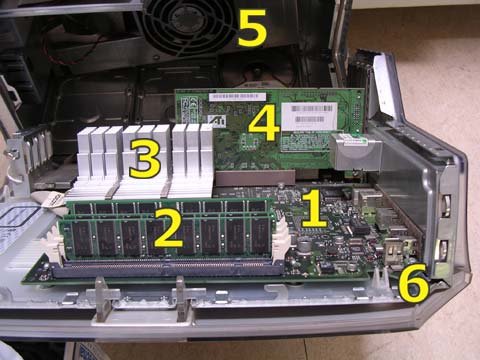
Step 4:Make sure you have an available slot. You can tell if you see one of those slots that are empty. If there are no more slots, don't try to put your RAM card into another random slot, as you might damage your card or your computer.
Step 5:This is the fun part, actually putting it in. So now you must open the slot. See those white or black snappy things on the side of the slot? Push those down.
Step 6:Place your card in and make sure it goes the same way as your other cards. If not, this can damage the slot and your card.
Step 7:If you pushed hard enough the snappy things should "snap in" so your card is installed.
Step 8:Put your computers cover back on and close it
Step 9:Plug your computer back in, and turn it on. Right away you should hear some sort of beep.
One short beep means everything is good and your ram is installed right.
A long beep that doesn't stop means that your computer can't detect your RAM. Which means that you installed it wrong.
Ok well, you just bought a new RAM card. You want to install it and don't know how? Well this guide is for you!
NOTE:Whenever you touch anything inside you're computer, never create static. This can break things. Sad
Step 1:Turn off, then unplug your computer.
Step 2:Take off the cover. Hopefully you won't need to unscrew anything.If you do..well unscrew it.
Step 3:Locate you're RAM card slots. It should look something like this.(Number 2) Image
Step 4:Make sure you have an available slot. You can tell if you see one of those slots that are empty. If there are no more slots, don't try to put your RAM card into another random slot, as you might damage your card or your computer.
Step 5:This is the fun part, actually putting it in. So now you must open the slot. See those white or black snappy things on the side of the slot? Push those down.
Step 6:Place your card in and make sure it goes the same way as your other cards. If not, this can damage the slot and your card.
Step 7:If you pushed hard enough the snappy things should "snap in" so your card is installed.
Step 8:Put your computers cover back on and close it
Step 9:Plug your computer back in, and turn it on. Right away you should hear some sort of beep.
One short beep means everything is good and your ram is installed right.
A long beep that doesn't stop means that your computer can't detect your RAM. Which means that you installed it wrong.



