




Pockets has reported a post.
Reason:
Forum: Internet
Assigned Moderators: SuF
Posted by: Pack Yak
Original Content:
Reason:
Post: How to always catch your scammerHellz Shellz somehow scammed him? He joined yesterday and has 91 posts per day?
Easiest vader catch ever?
Forum: Internet
Assigned Moderators: SuF
Posted by: Pack Yak
Original Content:
This guide will show you the best way to manage your trades and how to always get your scammer banned.
Key
Section 1 - How to trade efficiently. - [x6ug8]
Section 2 - How to report a scammer. - [yf45d]
Section 3 - How to manage your trades. - [7u4bd]
Section 4 - How to efficiently take screenshots - [h3f87]
To use the key simply copy the code (the [3fh38]) and then hold Ctrl and press F, this will bring up a feature that is able to find text. Paste the code into the Find box and you will find the section you need.
[size=-2][x6ug8][/size]
I have always been a very organised person and it may seem too far to some, but I guarantee you if I ever fell for a scam, the scammer would be banned in no time. In the past when I had less knowledge of online trading I fell for some scams, but all of the scammers were banned because I used this method even back then.
If you want the same result as me it's very easy to do, all in 3 simple steps..
Step 1 - Gather all information
It is very important you know who you are trading with.
- Make sure their email is correct (always triple check this)
- Make sure they PM you, or PM them and tell them to tell you what you said in the PM
- Google their email (this is to see if they are a ban evader or if they use other forums)
- Look for other information you might want to find
Step 2 - Save any evidence that confirms it is the person you are talking to
You want to save the PM, which is most important, this is the main indicator that proves it is who they say they are.
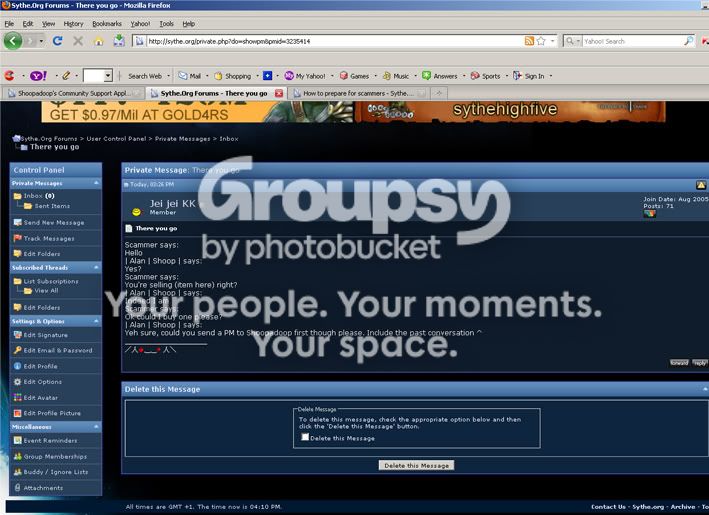
You can also check their profile to see if they have their email on there.

Step 3 - Save all chat logs (conversation screens)
This is when talking to the person you are trading on msn. You want to make sure you always print screen the whole conversation window, this is because the persons msn is at the top and it proves they are indeed the chat logs of that person.
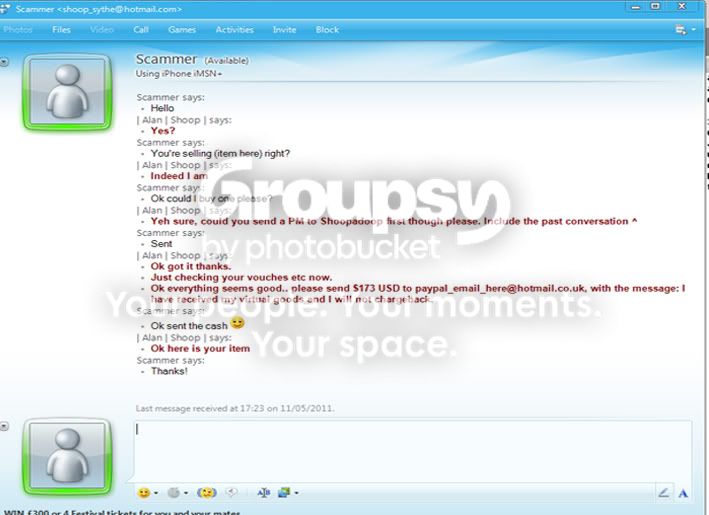
You should save all chat logs and keep them in folders in case you need them later on. Here is an example of mine.

You may trade with someone more than once so try to keep each trade separated.

Remember to always follow these steps and you will always catch your scammer
[size=-2][yf45d][/size]
Now, if the unfortunate event of being scammed occurs you should have all the information you need to get them banned instantly.
Here is how to put the information to use.
First of all check this link for your template http://sythe.org/showthread.php?t=1118369.
As you have been scammed your template should look like this:
Now using that template I will show you how to report the scammer successfully.
Link to scammer's Sythe profile: http://sythe.org/member.php?u=241217 (use the profile of the person that scammed you)
Briefly explain the trade: I sold him 90M Runescape GP for $173 USD.
How they scammed: Paypal charge back.


Proof that you were not talking to an impostor:
(show the PM you print screened)
Also show their email.

Their email will be at the top of the msn conversations so you can confirm it's the scammer through them.
Trade screenshots:
In this case all I have is the msn convo.
Get them to say they have received the item, that should be enough proof. Often people will say thank you after you have traded with them, that is also proof as it shows the trade has ended.
If you want to get into more detail you can video the whole trade.
[size=-2][7u4bd][/size]
Using the above method you are guaranteed to get your scammer banned.
This is how I set out my trade folders.
(I have chosen Hamjam as he agreed to let me use the screenshots of our trades)
The folders:
Trades with said person:
Inside one of the trade folders:


You should have everything you need to report the scammer inside these folders.
[size=-2][h3f87][/size]
It seems for some that taking a screen shot is rather difficult or time consuming, I will show you to take one fast and easy.
Personally I use the old fashioned way, press print screen (PrtSc, Prt Scr), open pain, press Ctrl V and then save.
(if you can get on Sythe you probably know what paint is, so I'll not bother with screen shots for that)
I'll show you how to use screen snapper here.
Step 1 - Download Screen Snapper
Got to http://www.screensnapr.com/ and then click Free Download

Install it and then you're pretty much set to go.
As it says in the picture "Control + 1, press for your shortcut" that is what you will use instead of the Screen Shot button from now on.
It freezes the screen and then you can pick a certain section that you wish to screenshot, for example;

To put it into the forum simply click the picture in the link you can now paste and then copy the URL.
Then just put the link inside like so [img]Link Here[/img]
Stay safe and trade safe.
Funny because Hellz Shellz scammed me at one point.