


Hey all, Spade here.
This is my first tutorial for the Community Guides Section.
At a later time i will post more, you could message me if you would like to request a guide.
In this guide:
You will learn how to create a RAMDisk partition on your computer to
load programs and files faster from your ram instead of your hard drive.
System Requirements:
- Any computer using Windows Xp, Windows Vista, or Windows 7
- Any Intel or AMD-based system with at least 512 MB RAM.
(free RAMDisk users are allowed to use up to 4GB of ram.)
Guide:
Step 1 - "Downloading"
First you are going to want to download RAMDisk from: Here
Scroll down on that page until you find a download button and click it.

Step 2 - "Installation"
Simply run the exe you've gotten from the RAMDisk site, and install it to
wherever you desire. Start it up and you should see a screen similar to this.
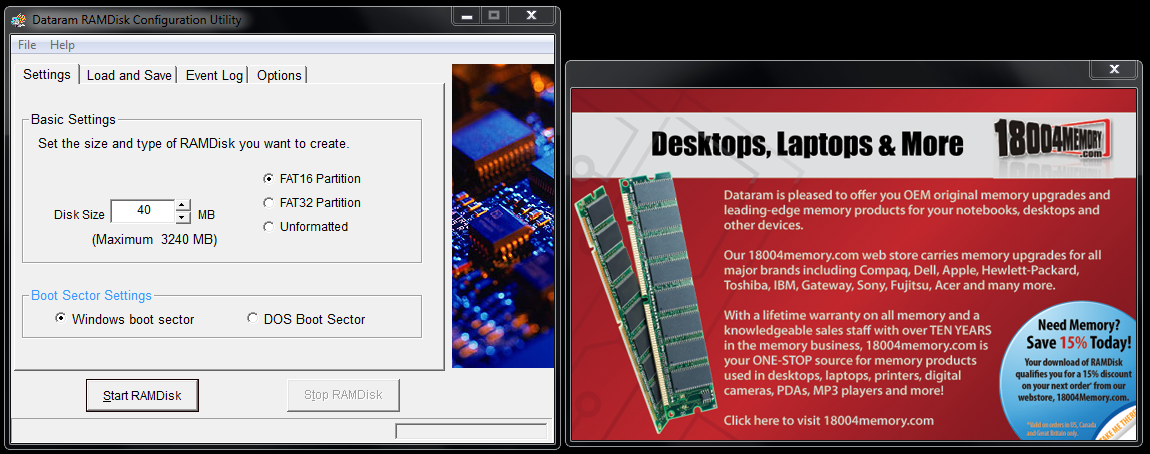
You can exit out of the advertisement window and focus on the actual Configuration Utility
Step 3 - "Creating your RAMDisk Partition"
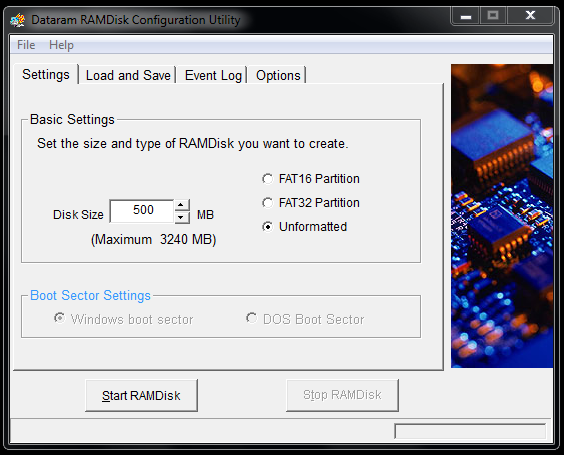
On the first screen you will see that you can choose the size of your Disk
you will be creating. As I said above, free users have a limit of 4GB of ram.
Set these options to your preference,
To start out i will be creating a 500mb disk.
(Choose Unformatted)
Step 3.1 - "Load and Save Settings"
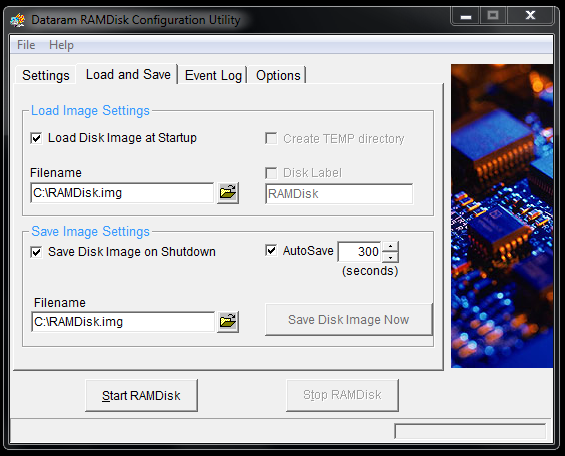
Head over to the load and save tab and adjust these settings to your preference,
If you plan on using the RAMDisk to host a online server of some sort you may
want to have RAMDisk Load the disk image when at the startup your computer.
Also if you plan on hosting an online game,
you should have RAMDisk auto save every 300 seconds or so.
Step 4 - "Making the Partition you created Usable"
When done with all the settings, click the button saying "Start RAMDisk"
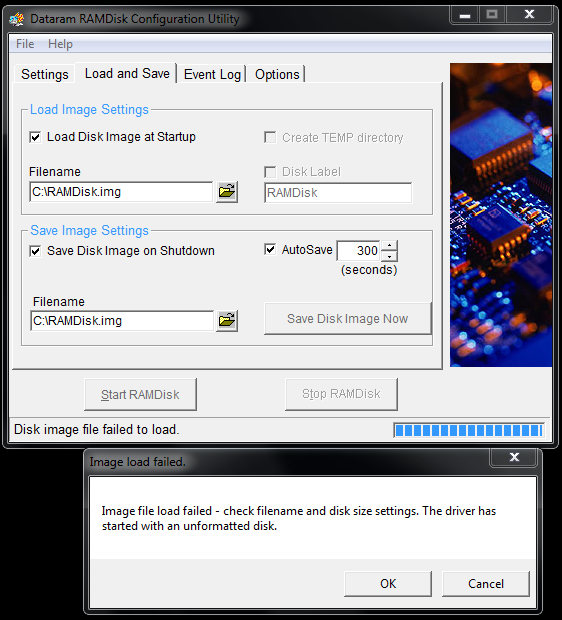
The first time you use RAMDisk, you will get an error saying it could not load the image.
This is a good thing!
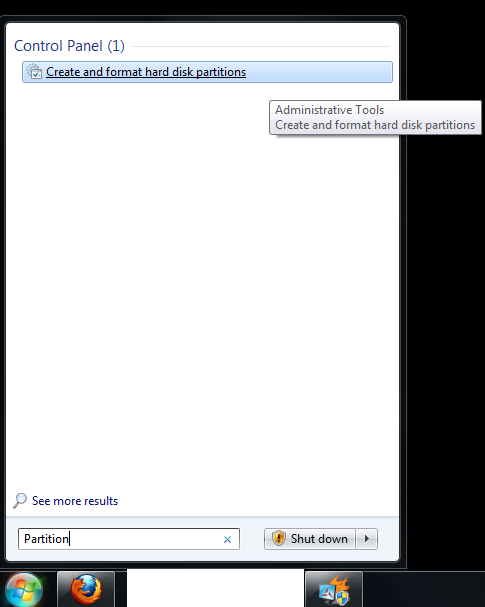
Head over to your start menu and search for "Partition"
Step 4.1 - "Formatting your Partition"
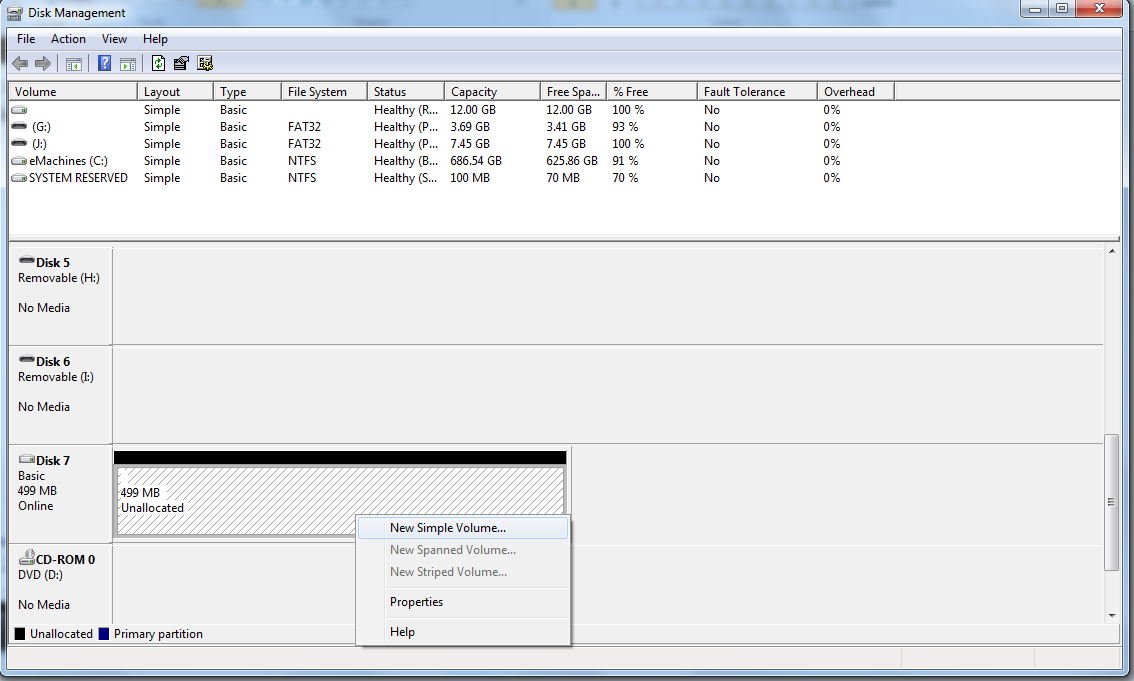
Scroll down on the Disk Management window until you see a partition close
to the same size of the partition you've just created.
Right click and and select "New Simple Volume..."
Follow through the new volume wizard
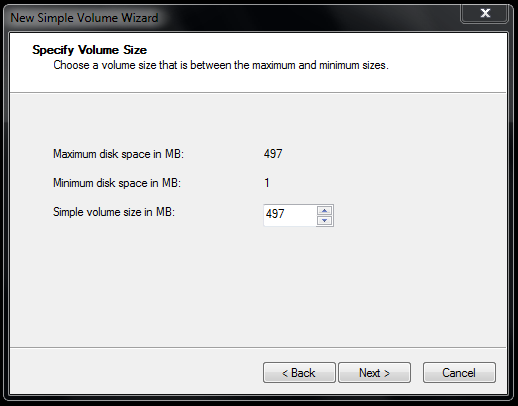
Choose how large you want the Volume to be
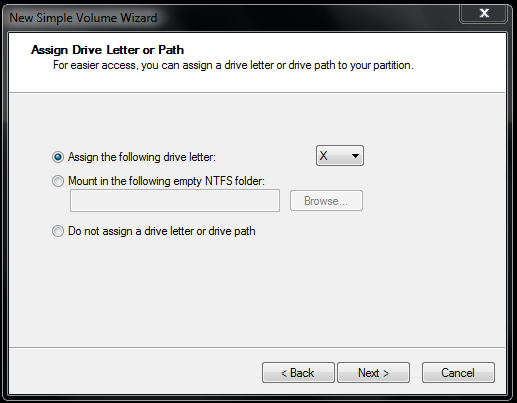
And assign any letter for your volume
(this is in case you have multiple RAMDisk Volumes)
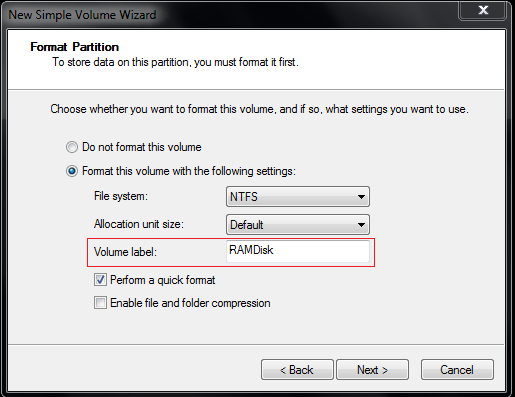
For the formatting part, leave the bubble that is already checked,
and select a name for your Volume. When done hit next and then finish.
Congratulations you setup your first RAMDisk Partition!
Step 5 - "Final Steps"
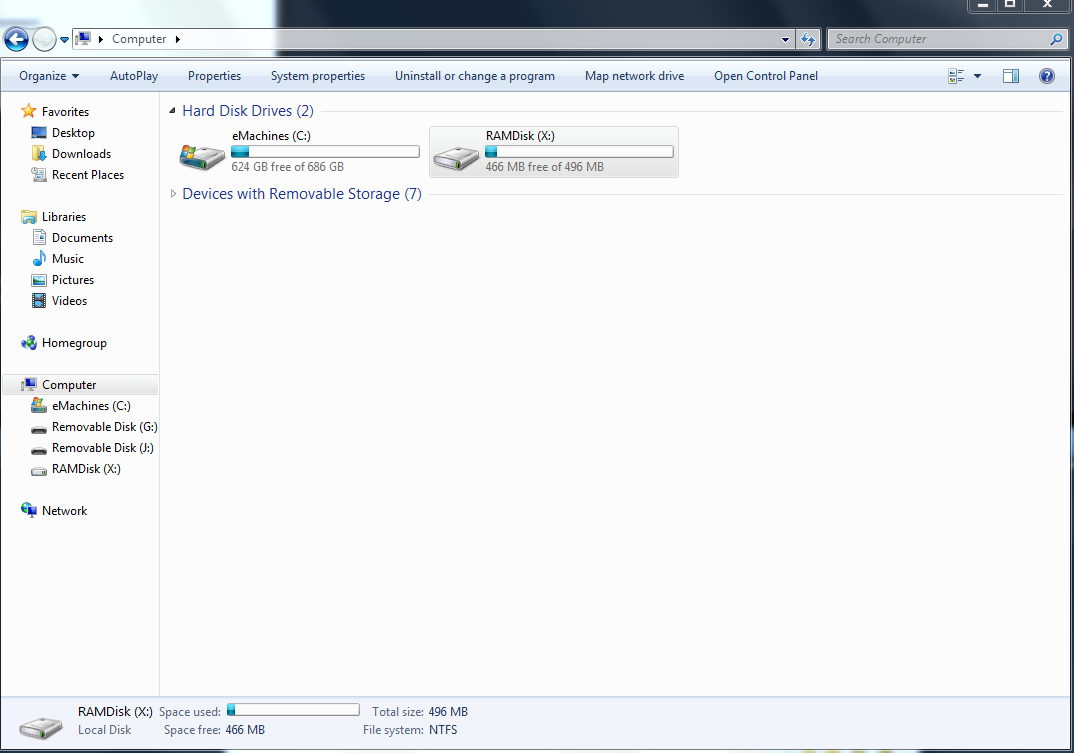
When done with all the steps, you will be able to go to "My Computer"
and see your new Partition.
Open it and you can store programs in it until it is full and has no more room.
By using programs from the Partition you created, they will load much faster than loading from your actual hard drive.
__________________
If you guys have any suggestion for my guides,
Criticism is greatly appreciated! Thanks!
This is my first tutorial for the Community Guides Section.
At a later time i will post more, you could message me if you would like to request a guide.
In this guide:
You will learn how to create a RAMDisk partition on your computer to
load programs and files faster from your ram instead of your hard drive.
System Requirements:
- Any computer using Windows Xp, Windows Vista, or Windows 7
- Any Intel or AMD-based system with at least 512 MB RAM.
(free RAMDisk users are allowed to use up to 4GB of ram.)
Guide:
Step 1 - "Downloading"
First you are going to want to download RAMDisk from: Here
Scroll down on that page until you find a download button and click it.
Step 2 - "Installation"
Simply run the exe you've gotten from the RAMDisk site, and install it to
wherever you desire. Start it up and you should see a screen similar to this.
You can exit out of the advertisement window and focus on the actual Configuration Utility
Step 3 - "Creating your RAMDisk Partition"
On the first screen you will see that you can choose the size of your Disk
you will be creating. As I said above, free users have a limit of 4GB of ram.
Set these options to your preference,
To start out i will be creating a 500mb disk.
(Choose Unformatted)
Step 3.1 - "Load and Save Settings"
Head over to the load and save tab and adjust these settings to your preference,
If you plan on using the RAMDisk to host a online server of some sort you may
want to have RAMDisk Load the disk image when at the startup your computer.
Also if you plan on hosting an online game,
you should have RAMDisk auto save every 300 seconds or so.
Step 4 - "Making the Partition you created Usable"
When done with all the settings, click the button saying "Start RAMDisk"
The first time you use RAMDisk, you will get an error saying it could not load the image.
This is a good thing!
Head over to your start menu and search for "Partition"
Step 4.1 - "Formatting your Partition"
Scroll down on the Disk Management window until you see a partition close
to the same size of the partition you've just created.
Right click and and select "New Simple Volume..."
Follow through the new volume wizard
Choose how large you want the Volume to be
And assign any letter for your volume
(this is in case you have multiple RAMDisk Volumes)
For the formatting part, leave the bubble that is already checked,
and select a name for your Volume. When done hit next and then finish.
Congratulations you setup your first RAMDisk Partition!
Step 5 - "Final Steps"
When done with all the steps, you will be able to go to "My Computer"
and see your new Partition.
Open it and you can store programs in it until it is full and has no more room.
By using programs from the Partition you created, they will load much faster than loading from your actual hard drive.
__________________
If you guys have any suggestion for my guides,
Criticism is greatly appreciated! Thanks!