




Legend




This guide is going to show you the basics for Photoshop, showing you how to use it to make signatures/avatars and anything else you might need.
Key:
Making Signatures/Avatars - Key Code 1s1
Useful Websites - Key Code 2s2
To use the Key simply press Ctrl and F together on your keyboard and type in Key Code.
Making Signatures/Avatars 1s1
Making signatures is a lot easier than you might think, I will show you how to make a signature quick and easily.
Ok, first of all you want to open Photoshop, it could be fast or slow depending on how fast your computer can run.
Then you want to go to the top left and click "File" then click "New", something should pop up and you want it to look like this:

The width and height can be changed to suite the signature you might want, you can get many different sizes of signatures.
After that click "OK" and you should get this:
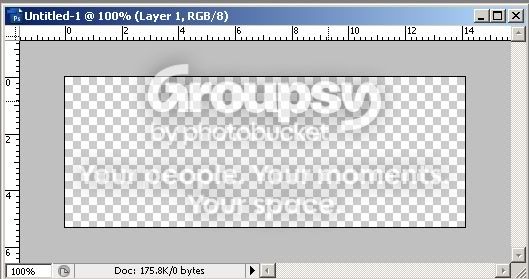
Now you want a background for your signature, you can either easily make one using the different types of brushes, or you can find an image on Google or where ever you can find one.
I will be making my own with the different types of brushes I have.
Click the brush icon on the left hand side and then choose the brush you want and the size you want the brush like this:

Then all you need to do is select the colour you want the brush and put it on your first layer, then change the colour of the brush and do the same, then change the brush and the colour back to your original colour and do the same. Repeat until you are happy with the outcome, mine looks something like this:

Now, you want to find a render I recommend using http://www.planetrenders.net/ as once you save the render the background will already be transparent in Photoshop, if you do not use an official render site you will have to delete the background yourself which might take some time.
Once you have a render save it to your computer and then open it in Photoshop, then all you have to do is simply drag it over to your signature.
Many renders are often to big to fit, if this is the case then Ctrl and T together and resize to the size you want, if you hold Shift while resizing it will stay in proportion. Mine now looks like this:

(I know there is a black line around my signature I will show you how to do that later.)
Once you have done that it is now time to add some text.
Click the "T" on the left hand side and then go up to the top to change your font, text size and colour etc. (see bottom of post for a link to cool font websites)
Then simply click on your signature and drag across, then type what you want. Mine looks like this:

Now to make it look good. Go down to the bottom right and it should say "Layer 1" or "Layer 2" etc it should also have the writing you typed out.
right click 1 of the layers and click "Blending Options.."
You can mess around with these things until you think it looks good enough. It's just slight changes you make to them that makes them pop out and look better.
Just mess about with all the different types of things and you will eventually get a half decent signature, here is an example:
Render:

Drop shadow - 75% opacity
Outer glow- The colour is slightly red, 75% opacity and blend to screen.
Colour overlay - 7% red
Stroke - Black, 1px, 32% opacity
After editing some of the blending options it eventually looks like this:

Early on in this guide I had a black line around my signature, that is to make it stand out slightly from the forum background.
To do this it's really simple, go to the bottom right of your screen and make a new layer:

Then go to the very top of the page and click "Select" then "All", a fuzzy line should appear around your signature, you then need to click "Edit" then go down and click "Stroke..." make it the colour you want and the size you want (I recommend 2-3 px) put the location to center. Now go to "Select" again and click "Deselect". You should now have a black line around your signature.
Save the file as .psd and then save it as .jpg or .png, the .psd is so you can open it up on Photoshop and edit it if you need to.
Useful Websites 2s2
For Renders -
http://www.deviantart.com/
http://www.planetrenders.net/
http://iphotoshop.org/renders/
For Font Downloads -
http://www.deviantart.com/
http://www.dafont.com/
For Uploading Pictures -
http://photobucket.com/
Key:
Making Signatures/Avatars - Key Code 1s1
Useful Websites - Key Code 2s2
To use the Key simply press Ctrl and F together on your keyboard and type in Key Code.
Making Signatures/Avatars 1s1
Making signatures is a lot easier than you might think, I will show you how to make a signature quick and easily.
Ok, first of all you want to open Photoshop, it could be fast or slow depending on how fast your computer can run.
Then you want to go to the top left and click "File" then click "New", something should pop up and you want it to look like this:
The width and height can be changed to suite the signature you might want, you can get many different sizes of signatures.
After that click "OK" and you should get this:
Now you want a background for your signature, you can either easily make one using the different types of brushes, or you can find an image on Google or where ever you can find one.
I will be making my own with the different types of brushes I have.
Click the brush icon on the left hand side and then choose the brush you want and the size you want the brush like this:
Then all you need to do is select the colour you want the brush and put it on your first layer, then change the colour of the brush and do the same, then change the brush and the colour back to your original colour and do the same. Repeat until you are happy with the outcome, mine looks something like this:
Now, you want to find a render I recommend using http://www.planetrenders.net/ as once you save the render the background will already be transparent in Photoshop, if you do not use an official render site you will have to delete the background yourself which might take some time.
Once you have a render save it to your computer and then open it in Photoshop, then all you have to do is simply drag it over to your signature.
Many renders are often to big to fit, if this is the case then Ctrl and T together and resize to the size you want, if you hold Shift while resizing it will stay in proportion. Mine now looks like this:
(I know there is a black line around my signature I will show you how to do that later.)
Once you have done that it is now time to add some text.
Click the "T" on the left hand side and then go up to the top to change your font, text size and colour etc. (see bottom of post for a link to cool font websites)
Then simply click on your signature and drag across, then type what you want. Mine looks like this:
Now to make it look good. Go down to the bottom right and it should say "Layer 1" or "Layer 2" etc it should also have the writing you typed out.
right click 1 of the layers and click "Blending Options.."
You can mess around with these things until you think it looks good enough. It's just slight changes you make to them that makes them pop out and look better.
Just mess about with all the different types of things and you will eventually get a half decent signature, here is an example:
Render:
Drop shadow - 75% opacity
Outer glow- The colour is slightly red, 75% opacity and blend to screen.
Colour overlay - 7% red
Stroke - Black, 1px, 32% opacity
After editing some of the blending options it eventually looks like this:
Early on in this guide I had a black line around my signature, that is to make it stand out slightly from the forum background.
To do this it's really simple, go to the bottom right of your screen and make a new layer:
Then go to the very top of the page and click "Select" then "All", a fuzzy line should appear around your signature, you then need to click "Edit" then go down and click "Stroke..." make it the colour you want and the size you want (I recommend 2-3 px) put the location to center. Now go to "Select" again and click "Deselect". You should now have a black line around your signature.
Save the file as .psd and then save it as .jpg or .png, the .psd is so you can open it up on Photoshop and edit it if you need to.
Useful Websites 2s2
For Renders -
http://www.deviantart.com/
http://www.planetrenders.net/
http://iphotoshop.org/renders/
For Font Downloads -
http://www.deviantart.com/
http://www.dafont.com/
For Uploading Pictures -
http://photobucket.com/




 .