
- Joined
- Jan 21, 2007
- Sythe Gold
- 1,234
- Messages
- 14,211


SuF has reported a post.
Reason:
Forum: Computing
Assigned Moderators: N/A
Posted by: I GO BLACK
Original Content:
Reason:
Post: How to build a PC (Indepth Guide)dat rip?
http://www.xossip.com/showthread.php?t=386883
Forum: Computing
Assigned Moderators: N/A
Posted by: I GO BLACK
Original Content:
First of all, i'd like to say that building a PC is easy. It's really simple. As simple as pluging things and slotting things into something else. The trick is not to panick is something doesn't work when it should. I have built probably over a thounsand PC's and i've had occasions where i've been totally stumped and then realised it was something simple. I taught my girlfriend how to do it and she's blonde , and she can do it now in about 20 mins. If a blonde can do it so can you (sorry to all the blonde lasses in the forum
WHAT YOU NEED
Ok, now because PC components are electric, you can't get ANY static on them as this will cause them to breakso try and get an anti static mat or anti static gloves.
A philips head screw driver is essiential for obvious reasons, it will be uses alot.
Most screws will come with the components you buy so no worries there.
THE COMPONENTS
A case obviously

A Motherboard or main board

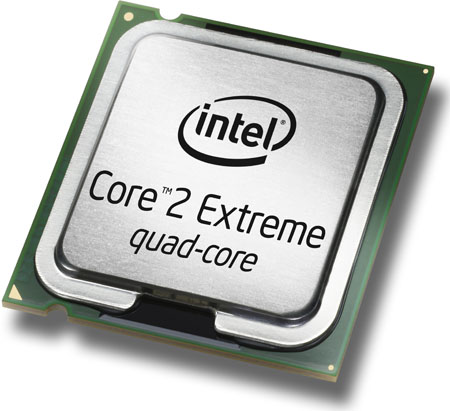
The CPU(central Proccessing Unit)
Graphics Card or GPU(Graphical Proccessing Unit)

Memory or RAM(Random Access Memory)

Sound Card(This IS NOT necessary; optional)^_^

Hard Disk Drives or HDD

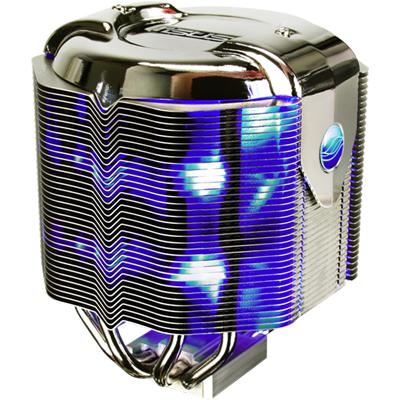
Heat Sink Fan Or HSF(One comes with the CPU as standard but they are quite frankly rubbish)
Power Supply Unit or PSU(Sometimes one comes with the case but you need a good PSU, as it that break it could take out everything it's connected to which isbasically your whole PC)

Cable Ties(to keep things tidy)

CHOOSING YOUR COMPONENTS - COMPATABILITY
This revolves around the motherboard mainly. When choosing your parts you need to make sure they all work together.
For example, everything has to work with the motherboard. If you buy one online, the website will tell you it's specifications.
This is the specs for a motherboard. What you need to really focus on is the CPU and RAM compatability. Just by reading that i don't think i need to explain the CPU part apart from the MAX BUS SPEED, this is important and you need to make sure your CPU bus speed is faster than your motherboards max bus speed, it can cause crashes.
The RAM part is fairly easy to understand:laugh: . Obviously don't put in more RAM than your board can take which is quite easy to find in ANY sites specs details. The type of RAM is a little more tricky. There are different types on ram, DDR, DDR2, DDR3 etc etc, but it goes even deeper than that. How fast the RAM goes is very important to the mobo. As you can see above it says the board supports DDR2, so that means it will support almost any DDR2 RAM you throw at it. If you find things like DDR2 1066/800, This means it will support DDR2 RAM at 1066MHz and 800 MHz, and it will probably support everything below that. The specifications on the RAM's web page and/or manual will tell you exactly what it is so make sure it's compatable with your Motherboard.
Graphics cards are easy also. I asume everyone has gone to PCI-E but if they havn't, check the board supports AGP. And to clear something up, most you know about PCI-E 2.0 graphics cards. THEY WILL WORK ON MOTHERBOARDS THAT ONLY SUPPORT PCI-E 1.1 WITH NO LOSS OF FRAME RATE. And make sure you check how big your card is to how big your case is as some cards are rather large.
Everything else will be compatable.
I will talk about PSU compatability later on.
THE BUILDING
PSU
Prepare your Case is essential, get to know everything
The PSU will go in first as it's the messiest bloody component. GET A MODULAR PSU. They are so much easier. This is an example of a modular PSU
The older PSU's just had all the plugs on a PSU and there were LOTS of left over plugs you didn't need. With these you plug in the plugs you need and leave it at that
So to sum up, put the PSU in first and screw it into place.
Just to be clear the PSU can go at the top or bottom of the case depending on the case.
Hard Drive(s)
This is very simple. As simple as slotting it in and screwing it in. If your using more than one HDD, make sure you put them one slot apart like the ones in the picture. You do this because of heat issues.
The HDD will probably be SATA or SATA2, i hope nobody is still going to use IDE on a newly built PC.
DVD Drive(s)
This is also as simple as slotting it in and screwing it in. They usually go right at the top and you have to put it in from the front of the case going inwards.
Motherboard
Be careful taking this out of it's packaging as it can easily break. This is also as simple as screwing it in one you have the screw hole lined up with the holes in the case.
Some motherBoards have a removeable tray, some don't but having a removable one makes it easier. Line it up with the hole on the motherboard tray and screw it in, it's as simple as that but it can be tricky.
There's one other thing. Theres a 'panel' you get with your motherboard like this.

Seeing as every motherboard is different you need to unclip the one that comes with your case and clip in the one that came with your motherboard, simple as.
Now your motherboard is in place, you need to start hooking it up. You should already have your PSU in place and attached the cables you need if it's a modular PSU. First thing you need is the big 24pin. You can't miss it really. It comes with ANY PSU. Look at the picture below, it's the one with the black circle around it, simply plug the 24pin from the CPU into the mobo and make sure you put it in the right way, the little clip tells you were.
Now you need to get the CPU in. You have to be VERY careful with this, if you break the little pins at the bottom which connects it to the mobo, it's useless. In the picture circled in red, this is where you need to put the CPU, simply flip back the lever, then flip back the second protector, and place it in VERY carfully, if you don't know which way round to put it have a look at the bottom. THERE IS NO PUSHING IN NEEDED, IT WILL SLOT IN VERY EASILY.
Now the RAM needs to go in, this is very easy. Just pull back the little levers and slot them in. You need to make sure they are going in the right way. In the picture below, the RAM slots are circled red. You will also notice the ram slots are coloured orange and black, if you have two RAM sticks and put them each in a black coloured slot, they will run in dual channel which makes them go faster in some ways.
Now you need to put the Heatsink Fan above the CPU. Most of these fans come with a preapplied layer of thermal paste. If you look at the picture above of the HSF, you will see little clips, it has four of them to be exact and if you look at the motherboard pictures around the CPU, there are four holes, you simply put the clips into the holes on the mobo and turn them so it locks into place.
After that you need to fit the 4pin CPU jumper. Some mobo's have an 8pin instead of 4pin, so you need to make sure your PSU has an 8 pin. Most will have 4 as standard. Below the 4 pin is circled in red.
SATA CABLES AND POWER.
Now you have your HDD's and your DVD Drive. IF your DVD drive is IDE, then you need to plug that into the IDE slot on your Mobo, which is next to the 24pin slot. Some new mobo's don't have IDE slots. Below is where you should plug your SATA cables to connect your HDD to your motherboard. You get SATA cables(the red cables) with your motherboard when you buy it. You Also need to power them. The other picture is an example of a SATA power plug on your PSU.
*NOTE* YOU NEED TO BE VERY CAREFUL WITH SATA CABLES AS THEY CAN SNAP EASILY.


FRONT PANEL
I can't really help you too much with this as it's just to difficult to explain But it's you connecting the button that turns on your PC and HDD light to the mobo. Check your motherboard manual to see where it goes
Graphics card
This is simple to install. You simply slot it into the PCI-E slot and screw it down. Look at the blow picture for examples. FYI a mobo can have more than one PCI-E slot.
Some Graphics cards need even more power from the PSU, there will be a little plug at the back of the card, either 6 pin or 8 pin or both.
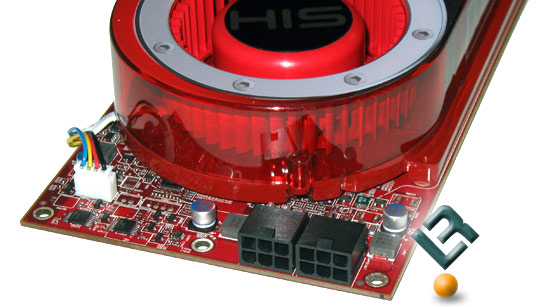
And you can use more than one card if you have two or more PCI-E slots. To use them both asuming you don't want dual moniters on seperate cards, you need the little bit of hardware. You connect this bit of hardware to the top of each card.

SOUND CARD
This goes in one of the little white slots next to eachother in between the PCI-E slots, they are called PCI slots.
FANS
Alot of fans these days use the old IDE HDD power, they are called MOLEX connectors.

Some need to connect to the motherboard.
Your HSF will need to be connected to your mobo fan connectors.
And thats about it
YOUR DONE!!!!!!
Your PC should power up now You need to tidy everything up so your PC has maxium airflow.
Plug in your moniter, keyboard and mouse. You need to go into the BIOS by pressing F10 or HOME or something like that(it tells you) at the POST screen and then check that your RAM, CPU, Graphics cards and all that are at the correct speeds, that nothing is to hot and they are all recognised. Then just install your Operating system.
IF IT DOESN'T POWER UP
Make sure everything is plugged into the the right places and make sure it's all the way in.
*****NOTE******
I havn't completely finished this yet but it requires everything to power up a PC and get it working.